Freight Order Entry Automation: How to Turn Emails and PDFs Into TMS Loads
A shipper emails a PDF load tender for Dallas to Atlanta. Ten minutes later, they reply with a new pickup time. If your team enters the load from the PDF alone, the carrier could get the original appointment. If someone treats the reply as a new order, the same load could appear twice in your transportation management system (TMS).
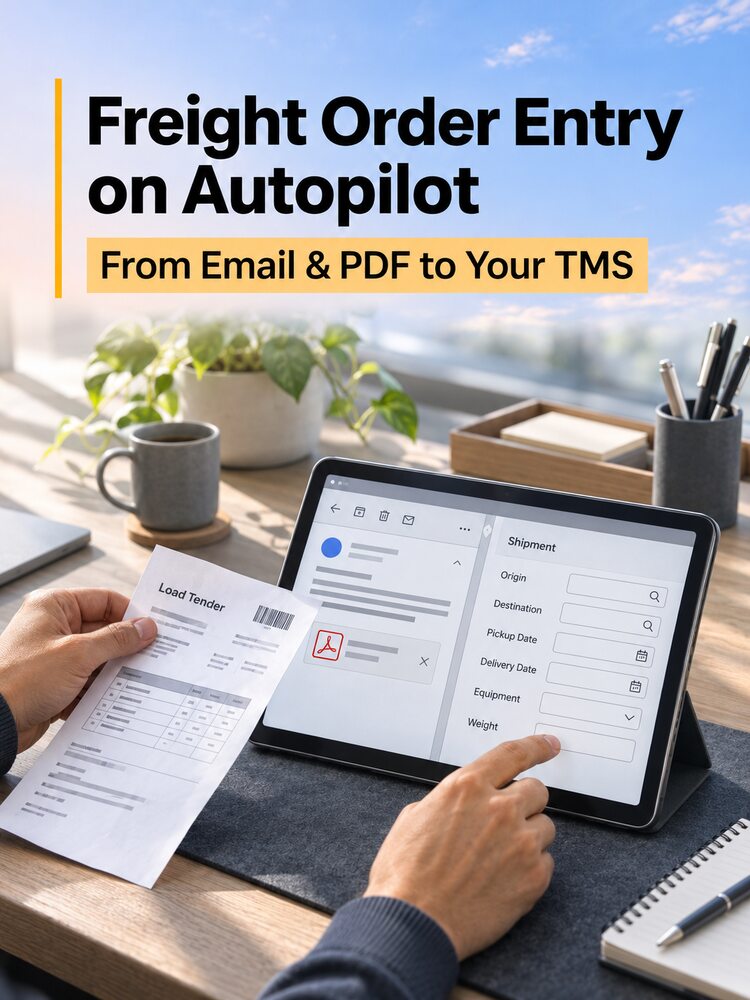
Freight order entry automation takes the details from the email and its attachment, checks them against your existing records, and prepares the load for entry into your TMS. Your team can review missing or conflicting details before they affect dispatch. Here’s how to set up that workflow.
Which Freight Emails Should Create a Load in Your TMS?
Start by deciding what each type of message should trigger. The subject line and attachment name can help, but the workflow also needs the customer reference and the context of the request.
| Incoming message | What the workflow should do |
|---|---|
| New load tender | Check for an existing record. If the order is new, prepare a draft load with the required fields. |
| Spot quote request | Route it to pricing. If your TMS tracks quotes, create or update a quote record and wait for the award before creating a load. |
| Revised tender or appointment update | Find the existing load and identify the fields the customer changed. |
| Forwarded or resent tender | Check the customer and order reference against existing records before creating anything. |
| Rate confirmation for an existing load | Match it to the load and route any changes to rates or terms for review. |
Keep TMS entry and tender acceptance as separate actions. A draft lets the team review the shipment details. Any acceptance sent back to the shipper should follow the team’s approval rules.
Freight Order Entry Automation From Email and PDF to TMS
1. Capture the Email and Its PDF Attachment
Start with the inbox where your team already receives tenders. Capture the email body, the relevant replies, and the attached PDF together. Keep a reference to the source so an operator can open it from the review screen.
An attachment may contain the lane, weight, and equipment, while a reply changes the appointment. If a PDF contains several orders, separate them by shipment reference before mapping each one to a TMS record.
2. Extract Freight Details and Map Them to TMS Fields
Define the fields your TMS needs to create a usable load. A pickup address, a shipper account, and a facility code may all refer to the same stop, but they belong in different fields. The mapping should reflect how your team uses the TMS.
| Information to capture | Example TMS field | What to check |
|---|---|---|
| Shipper’s order number | Customer reference | Match it within the correct customer account. |
| Pickup and delivery locations | Stop address or facility ID | Check the street address, stop sequence, and facility match. |
| Appointment date and time | Pickup or delivery appointment | Keep the date, local time, and time zone with the right stop. |
| Trailer requirement | Equipment type | Map customer wording such as “53-foot dry van” to your TMS equipment code. |
| Commodity, weight, and pallet count | Shipment details | Keep the weight unit and check that quantities belong to the correct load. |
| Agreed rate and accessorials | Rate and charge fields | Verify the currency and whether charges are included or listed separately. |
3. Match the Order to the Right Customer and Check for Existing Loads
Use the customer account and the shipper’s order reference to look for an existing load. A customer can send multiple shipments on the same lane in one day, so use lane and date as supporting details when reviewing a possible match.
If an existing record has the same reference, compare the incoming details with the saved values. A repeated message can be linked to the existing record. A revision can be queued as an update. If the reference is missing and several records could match, send the message to an operator with the possible matches.
4. Validate Required Fields and Review Exceptions
Set required fields by customer or load type. A standard truckload may need pickup and delivery details, equipment, and a customer reference. A refrigerated shipment may also require a temperature setpoint before it can move to dispatch.
Show the operator the extracted value alongside the original email or PDF when a field needs review. If the weight on a scan could be 36,000 lb or 38,000 lb, show the relevant part of the document. If the temperature setpoint is missing, hold the load at the appropriate approval stage until the team gets confirmation.
5. Create or Update the Load and Verify the TMS Record
After approval, use your configured integration to create a new load or update the matching TMS record. Save the TMS load ID and check that the critical fields persisted correctly, especially appointment times, stop order, and equipment.
If a submission times out, check whether the TMS saved the load before retrying. The TMS may have created the record even if the workflow never received the confirmation. Checking the customer reference or a unique submission ID before retrying helps prevent a duplicate.
What If the Email and PDF Disagree?
Decide which source can override a field before you automate the update. An explicit appointment change from an authorized shipper contact can be routed for review and applied to the existing load. A vague message like “push pickup back a couple of hours” needs a confirmed time before the appointment is changed.
Set stricter rules for changes that affect pricing or service. For example, if a revised PDF adds a stop or changes the rate, show the operator the saved value, the proposed value, and the source of the change. If a carrier is already assigned, route the approved update to the person responsible for coordinating the change.
Worked Example: From an Emailed Load Tender to a TMS Record
In this hypothetical example, a Dallas-to-Atlanta load is already in the TMS as a draft. The shipper replies to the original tender and moves the pickup from 2:00 p.m. to 4:00 p.m. Dallas local time. Both messages refer to order TX-48172.
| Field | Original tender | Shipper’s reply | Verified TMS record |
|---|---|---|---|
| Customer reference | TX-48172 | TX-48172 | TX-48172 |
| Pickup appointment | 2:00 p.m. Dallas local time | 4:00 p.m. Dallas local time | 4:00 p.m. Dallas local time |
| Delivery deadline | 8:00 a.m. the next day, Atlanta local time | — | 8:00 a.m. the next day, Atlanta local time |
| Equipment | 53-foot dry van | — | 53-foot dry van |
| Weight | 36,000 lb | — | 36,000 lb |
The workflow finds the draft using the customer account and order reference. It shows the operator the proposed pickup change and the original delivery deadline together. The operator checks whether the new pickup still allows the load to meet delivery, approves the change, and verifies the appointment on the same TMS load ID.
How to Pilot Freight Order Entry Automation With One Customer
Pick a customer who sends enough tenders to test the workflow across both routine and messy orders. Include a clean PDF, a forwarded duplicate, a revised appointment, and a tender with a missing field. Have an operator review every proposed record during the pilot.
Measure hands-on entry time per load, elapsed time from receipt to verified TMS record, the share of loads that need review, and errors or duplicates that make it into the TMS. Tracking hands-on and elapsed time separately helps you see whether the team is saving typing time and whether orders are ready for dispatch sooner.
C.H. Robinson reported that its staff previously spent an average of seven minutes manually entering shipment details after opening an emailed tender. It later reported processing emailed tenders into shipment orders in 90 seconds with its own automation. You can use the same distinction between manual entry time and overall processing time when defining your pilot metrics. Read C.H. Robinson’s report on freight shipment automation. C.H. Robinson
How FreightGraph AutoFill Supports Freight Order Entry Automation
AutoFill extracts shipment details from freight emails, load tenders, and PDF attachments. It maps those details to structured fields, flags information that needs review, and can send approved data to your existing TMS through a configured integration. To see how document capture, validation, and delivery fit together, explore FreightGraph AutoFill. FreightGraph AutoFill
Frequently Asked Questions
Can I Automate Load Entry Without Replacing My TMS?
Yes, if your current TMS supports an integration or import method that can receive the approved data. Check which fields it accepts, whether it supports both new loads and updates, and how it confirms that a record was saved.
Can Scanned PDFs Be Used for Freight Order Entry?
Yes. Scan quality, handwriting, and page layout can affect how reliably fields are extracted. Test scans from your actual customers and send unclear values to review, especially appointment times, weight, and reference numbers. freightgraph.ai
How Do I Prevent Duplicate Loads From Forwarded Emails?
Check the customer account and order reference against existing TMS records before creating a load. A forward can have a new email ID while referring to the same shipment. If the reference already exists, compare the shipment details to determine whether the message repeats the tender or revises it.